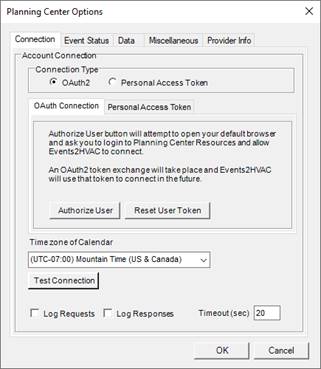
This tab defines the connection to your event calendar.
Connection Type - Select the appropriate connection type.
OAuth2 - Connects using OAUTH2 token exchange to a user account in Planning Center.
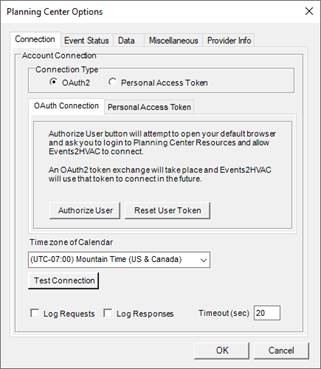
Authorize User Button
This will open up your default browser and initiate a token
exchange from the Planning Center web site. Login to the user
account in Planning Center that you want Events2HVAC to run under. An
authorization screen will ask for permission for Events2HVAC to access the
Resources area of Planning Center.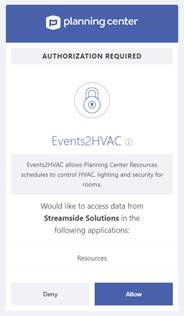
You have about 30 seconds to login and click on the “accept” button. A dialog will confirm that you successfully exchanged tokens or not.
Reset User Token
This will clear the current user token from Events2HVAC’s settings. A new token will need to be exchanged with a user account.
Personal Access Token
Requires a developer account.
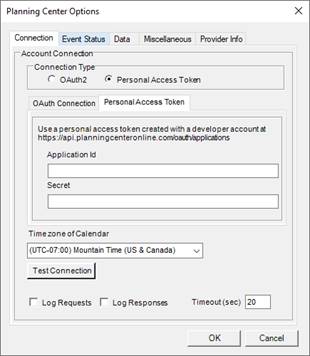
Application Id
Enter personal access token application id.
Secret
Enter personal access token secret.
Time zone of Calendar
Select the time zone of your Planning Center site data. Normally this will be your local time zone.
Test Connection
After you have entered the above information, this will check that you can connect to the API.
Log Requests
Check this box to enable all API requests to be logged to the Events2HVAC log file. You must have Events2HVAC logging severity set to DEBUG to see these messages.
Log Responses
Check this box to enable all API responses to be logged to the Events2HVAC log file. You must have Events2HVAC logging severity set to DEBUG to see these messages.
Note: You should turn off Log Requests and Log Responses after you have debugged your issues. Otherwise your log files will be filled with unnecessary extra data.