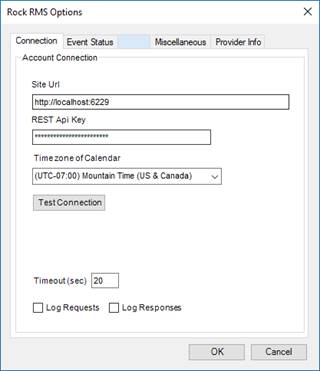
This tab defines the connection to your event calendar.
Site URL
Enter your site URL for your Rock RMS web site.
REST Api Key
Enter the REST Api Key for the Events2HVAC application that you generated on the Rock RMS System. See Admin Tools – Security – REST Keys in the Rock.
Time zone of Calendar
Select the time zone of your Rock RMS site data. Rock RMS does not store time zone information in their data, so it is necessary to match the time zone correctly. Normally this will be your local time zone.
Test Connection
After you have entered the above information AND you have set the permissions to the REST Controllers in Rock, click on the Test Connection button to attempt to test the connection to Rock RMS and all the permissions needed. If permissions aren’t set correctly for the REST key user, the message will indicate which permission failed as in the message below:
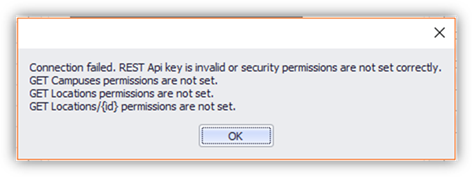
The message “GET Locations/{id}” indicates that the REST controller “Locations” and the REST action of the GET method of “api/Locations/{id}” needs to allow the REST key user view only access.
Log Requests
Check this box to enable all API requests to be logged to the Events2HVAC log file. You must have Events2HVAC logging severity set to DEBUG to see these messages.
Log Responses
Check this box to enable all API responses to be logged to the Events2HVAC log file. You must have Events2HVAC logging severity set to DEBUG to see these messages.
Note: You should turn off Log Requests and Log Responses after you have debugged your issues. Otherwise your log files will be filled with unnecessary extra data.