For larger implementations, you can import room mappings directly from a CSV file and simultaneously create the equipment definition as well.
Steps for importing equipment rooms:
1. You will want to have all of you equipment items defined before you import actions. If you have not done so, see the above section on importing equipment from a CSV file, and ensure these are in-place and correct before proceeding. If you choose otherwise, and an equipment item that does not exist is specified for an imported action, a default item will be created automatically
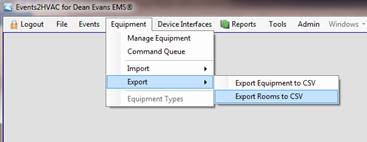
2. Begin, as with the other import actions, by exporting a file with the current definitions to use as a template. Go to the Equipment menu item, select Export, and then Export Rooms to CSV.
Enter the filename to export and select the desired directory.
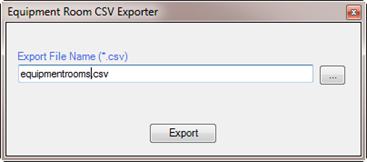
The resultant file will serve as a
template to which you can add new assignments.
3. Open the exported CSV file in Excel and fill in all of the rooms and buildings for each equipment item to be mapped. The names of the rooms and buildings must match what is in your event provider’s system. If not, an error will occur and that specific mapping will be skipped. Make sure you have connected to your event provider at least once previously, so that the room/bldg. cache is filled.
4. When
all new information has been added, import the completed CSV file by going to
the Equipment menu, select Import > Import Rooms From
CSV.
Enter the filename to import.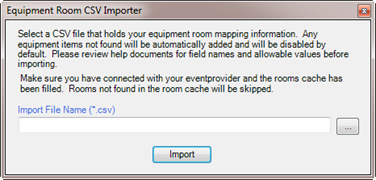
After the import, a message box will appear informing you of the results.
5. Verify your equipment definitions have the expected room mappings assigned.