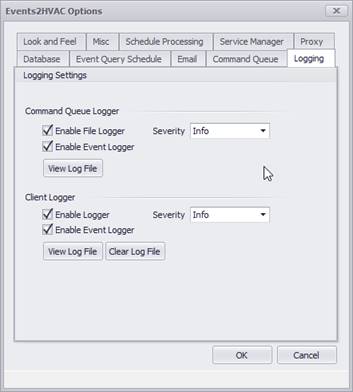
The Logging tab has options for designating the degree of logging information that is collected while the server and the client application are running.
Note: Since the command queue is running under a Windows service, changes to the command queue settings won’t take effect until the service is restarted. Also, the command queue log file has to be cleared by deleting the file after the command queue service is stopped.
Here are descriptions of the settings required in the Logging tab:
Command Queue Logger
•Enable File Logger: Check this option to log the information to a file located in the application root directory. The file name will be named Events2HVAC_service.log. A new log file is generated at 20MB.
•Enable Event Logger: Check this option to log the information in the computer’s event log.
•Severity: Select the level of detail recorded in the log information: Debug (highest detail), Info, Warning, Error, Fatal (lowest detail).
Note: If Debug severity is chosen, it is strongly recommended you revert to a lower level of logging after the debug information has been captured. Otherwise, your log files will get large quickly.
Client Logger
•Enable File Logger: Check this option to log the information to a file located in the application root directory. The file name will be named Events2HVAC.log. A new log file is generated at 5MB.
•Enable Event Logger: Check this option to log the information in the computer’s event log.
•Severity: Select the detail of log information. Debug (highest detail), Info, Warning, Error, Fatal.
Note: If Debug severity is chosen, make sure it is turned back down to a lower level after the debug information has been captured. Otherwise, your log files will get large quickly.
When a new log file is created, the previous log file will be archived in the /archives/ folder.