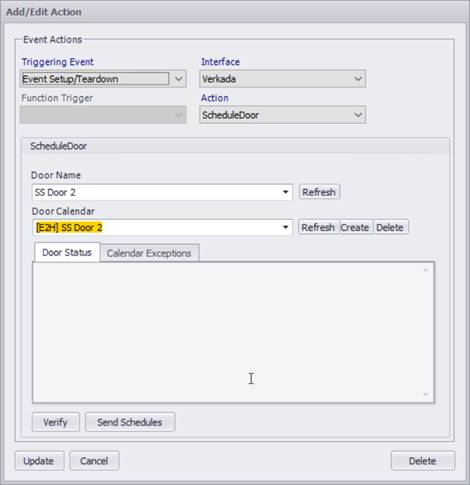
The ScheduleDoor action sends event schedules to the Verkada schedule assigned to an door.
At each event query (manual or automatic), 24 hours of event schedules are calculated, pre-start and post-stop times are added, overlapping schedules are combined, and the final list is pushed down to the door schedule. Events2HVAC will retain the last scheduled command state so current state is maintained correctly for the present time.
If Enable Schedule Push Optimization setting is NOT set, all ScheduleDoor actions will be pushed at each poll interval.
If Enable Schedule Push Optimization setting is set, all ScheduleDoor actions will be evaluated at each poll interval to determine if a schedule push is needed for each action. This option is more efficient since it only pushes schedules when there is a change in schedule between the last push and the current schedules. See the Schedules Tab for more details on these settings.
This action applies to the following event triggers:
•EventStartStop
•EventSetupTeardown
•ZoneFirstLastEventStartStop
•ZoneFirstLastSetupTeardown
|
Field Name |
Description |
Range |
|
Door Name |
Name of the door. |
|
|
Door Calendar |
Door Exception Calendar that E2H will be sending schedules to. |
Verify
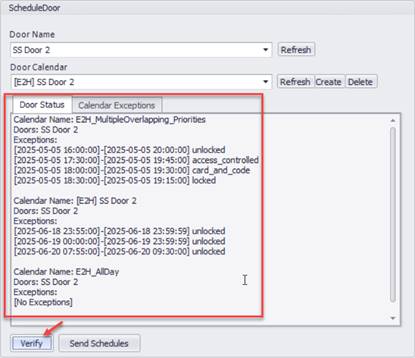
The Verify button reads the door status information and current scheduled events for all schedules that are assigned to the door and displays it in the door status results area.
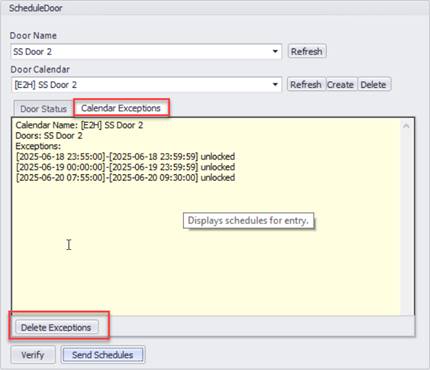
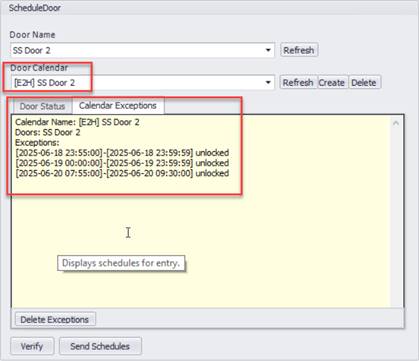
The calendar exceptions from the selected door calendar will be shown in the Calendar Exceptions tab
Send Schedules
The Send Schedules button retrieves the current days’ events for the next 24 hours and sends the door exception schedules to the assigned door calendar.
Refresh (Doors)
The Refresh button will reload all doors found and update the door list combo box.
Refresh (Door Calendar)
The Refresh button will reload all door calendars associated with the selected door and update the door calendar combo box.
Create (Door Calendar)
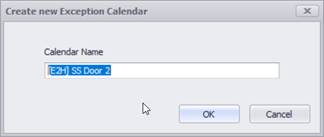
The Create button will prompt you to create a new calendar for the door. The default calendar prefix will be used along with the name of the door as the name of the door calendar schedule.
Delete (Door Calendar)
The Delete button will delete the selected door calendar for the door.
Warning: This will delete the calendar and any door exceptions for the doors that are assigned to that calendar.
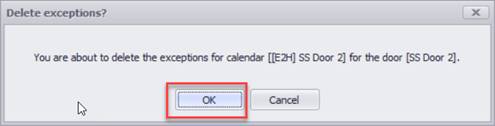
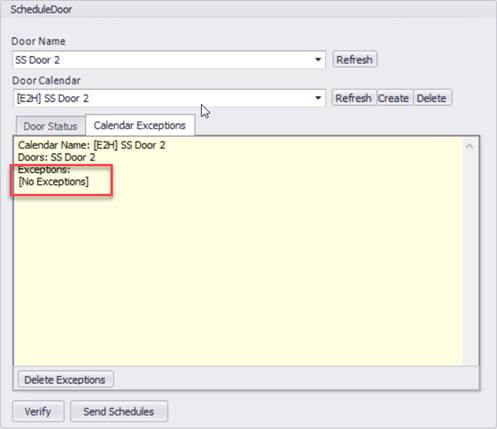
Delete Exceptions (Door Calendar Exceptions)
The Delete Exceptions button on the Calendar Exceptions tab will delete only the door exceptions for the selected door calendar for the door. The calendar itself is not deleted.