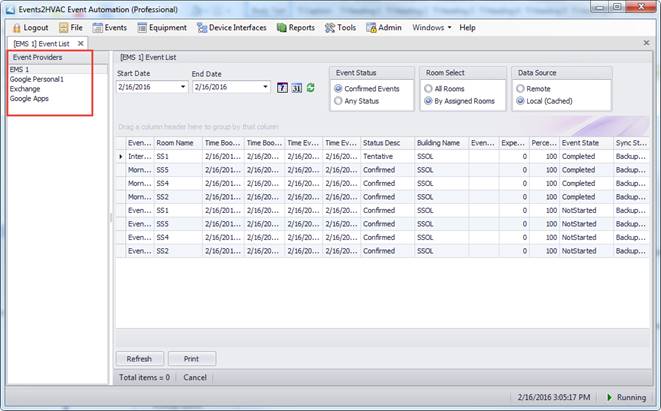
The event list allows you to see either Live event data from the event provider or cached data.
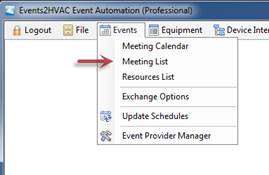
Select Meeting List or Event List (depending on your event provider) from the Events menu to view event data in a list format over a specific date range.
Use the Start Date and End Date fields on the left to select the desired date range. Clicking on the “7” and “31” icons will automatically set the end date to one week or one month after the start date, respectively.

The Data Source field allows you to select if you want to retrieve live data from the remote Event Provider source or view what was last retrieved in the local cache. Depending on the event provider, retrieving remote data may take several seconds to minutes depending on your date range. The control will default to local (cached).
After the date range is selected, hit the green Refresh icon or the button at the bottom of the screen to generate the event list.
You can filter the event list two ways:
In the Event Status box, select Confirmed Events if you want to view only events that have confirmed status in your event provider.
In the Room Select box, select By Assigned Rooms if you want to view only events occurring in rooms that are assigned to an equipment item in Events2HVAC (i.e. events that will trigger a command to an infrastructure device).

The data shown in the list grid can be filtered, grouped, and printed (or exported).
Note: Whenever remote data is retrieved by this control, the event cache is updated automatically and can be used as backup data in the event of a communication failure with the event provider.
Single Tab – Multiple Event Provider Event List
If you have more than one event provider active (Professional edition) you can click on the common Event List item in the menu.
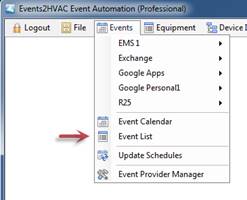
The same event calendar will be shown with the addition of an event provider selection box. This allows you look at multiple systems without opening a separate tab for each calendar.