An Api key is needed for the integration to login via the Api.
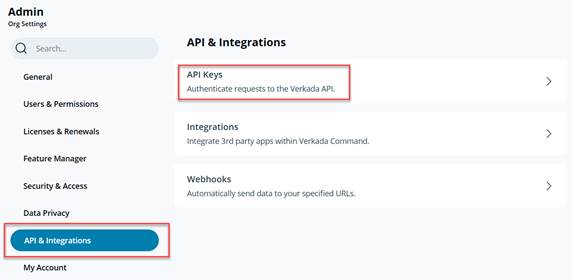
1. Go to Organization Settings – Select API & Integrations – Select API Keys
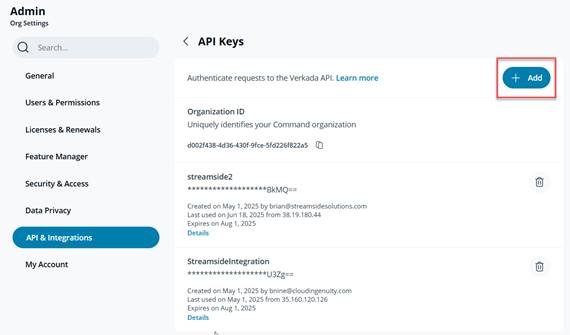
2. Click “Add” to add a new API key
3. Fill in the name of the key, select permissions, and the expiration date.
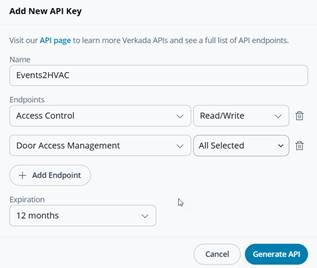
Permissions needed:
Access
Control – Read/Write
Door Access Management – Select the sites to allow
access
Expiration:
Select a date far in the future. After expiration, a
new Api key will need to be generated.
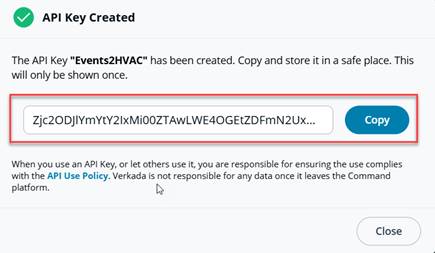
4. Click
“Generate API” and copy the Api key on the dialog. This key will only be
shown once.
Access Settings
1. Go to
Access – Access Settings and enable the “Enable Door Management via API”
setting.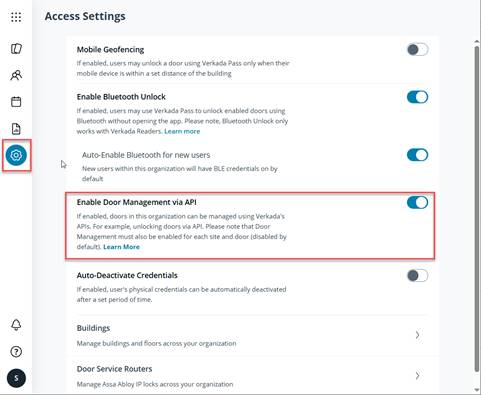
2. Go to
Access Home – Select Settings and enable the “Enable Door Management via API”
setting for each site that you want to control doors via API.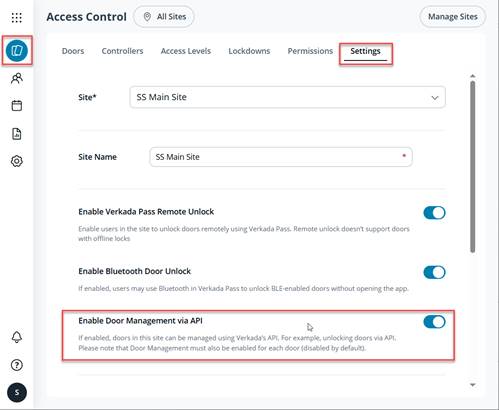
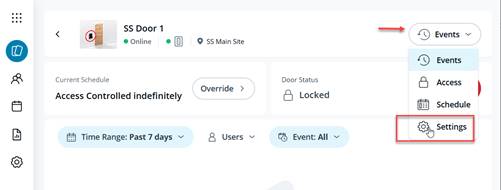
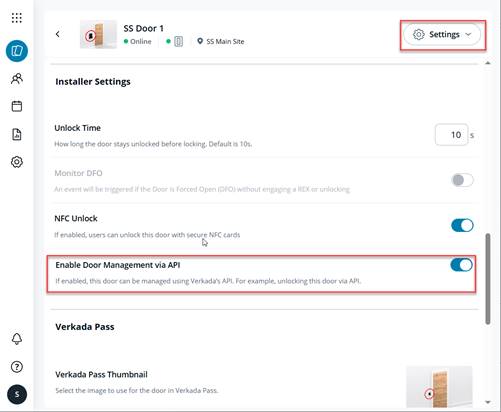
3. For each door, select the door settings and enable the “Enable Door Management via API” setting