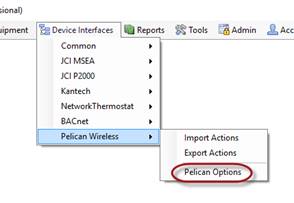
After the installation of Events2HVAC, you will need to configure the connection to the Pelican Wireless Site Manager.
1. Open the E2H client.
2. Select
Device Interface
àPelican
Wireless à Pelican
Options. (Note: If you don’t see this option, either you didn’t load
the Pelican Wireless interface during setup, or you need to rediscover your
devices using Device Interface Manager.)
3. On the
Connection tab, enter the connection information specific to your
system. See the next section on interface options for details about each
field.
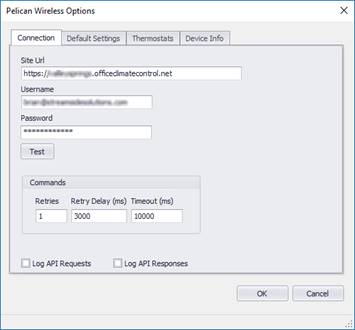
4. Open the Default Settings tab and enter the default settings for your thermostats.
5. Open the Thermostats tab and discover all your site’s thermostats. The list of thermostat that you discover will appear as drop-down list items when you define the equipment actions for each zone.
6. Now you are ready to start mapping equipment zones.